In Hyper-V 3.0, there is new exciting function as “Replica” that belong to be an asynchronous replication from one Hyper-V’s VM to another Hyper-V Server.
Its synchronization exists four types:
1. non-cluster to non-cluster
2. non-cluster to cluster
3. cluster to non-cluster
4. cluster to cluster
In the following lab, I will introduce how to do it on non-cluster environment.

Configure the firewall on Replica Server
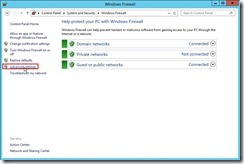
To configure the firewall rules for Kerberos authentication, click
Advanced settings link to open
Windows Firewall with Advance Security Management in Control Panel/System and Security/Windows Firewall.
In
Windows Firewall with Advanced Security Management, click
Inbound Rules next to select
Hyper-V Replica HTTP Listener (TCP-In) and click
Enable Rule
Configure the Replica server to receive replication
In
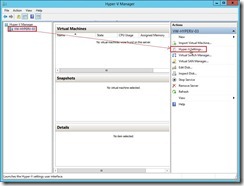
Hyper-V Manager, click the
Replica Server next to click
Hyper-V Setting… link in the
Actions panel
In the
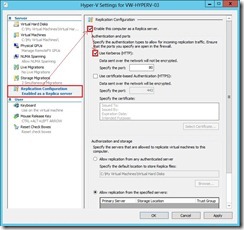
Hyper-V Settings dialog, click
Replication Configuration Enabled as a Replica server in Server panel, select
Enable this computer as a Replica server and
User Kerberos (HTTP) check box in the
Authentication and ports section
In the
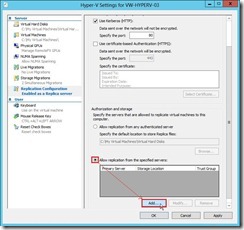
Authorization and storage section, select
Allow replication from the specified servers radius button next to click
Add… button
In Add Authorization Entry dialog, write down the individual primary server as
vw-hyperv-01.dw.com by <FQDN> or the particular domain as
*.dw.com by *.<Domain Name> in
Specify the primary server field, designate the special location for storing replica files, and assign a name as
Trust Group 01 with the trust group tag.
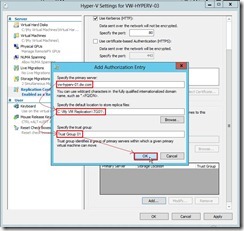
Click
OK button if we are finished
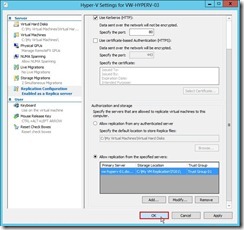
Click
OK button if this reminding message “Inbound traffic needs to be allowed in the Firewall” has already been done.

Enable replication for VM on Primary serverIn Hyper-V Manager, select a VM that want to be replicated next to click
Enable Replication… link to launch the Enable Replication wizard.
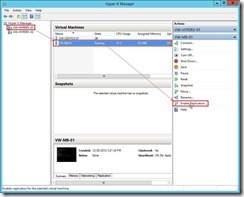
In
Before You Begin page, click
Next > button
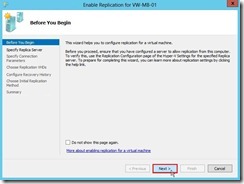
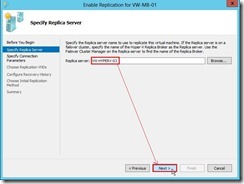
In
Specify Replica Server page, enter either NETBIOS or FQDN on Replica server field next to click
Next > button
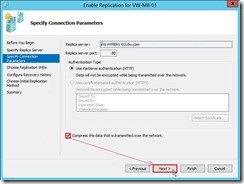
In
Specify Connection Parameters page, the port number and authentication type of the Replica server will automatically be populated if Remote WMI is enabled. So that keep the original setting about
Compress the data that is transmitted over the network check box and then click
Next > button.
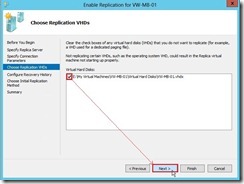
In
Choose Replication VHDs page, clear the check box of some VHDs that we don’t want to replicate next to click
Next > button
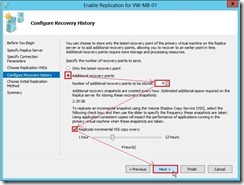
In
Configure Recovery History page, select
Additional recovery points option, assign a number of additional recovery points to be stored, enable and change copy frequency for Replication incremental VSS next to click
Next > button
In
Choose Initial Replication Method page, select the initial replication method and schedule initial replication based on the decision next to click
Next > button
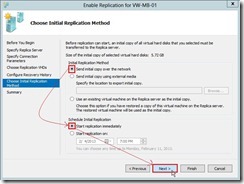
Click
Finish button to complete the enable replication wizard
(# 2)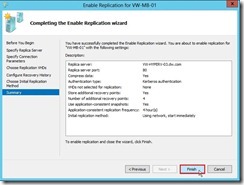
Due to we choose the initial copy over the network, the transmission traffic will begin to be high in the send of Primary Server or the receive of Replica Server.
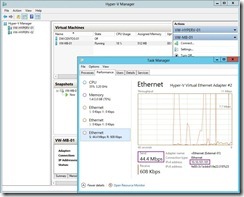

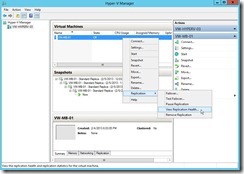
Monitor replication health
In Hyper-V Manager of Replica Server, right-click the replicating VM next to select
Replication and
View Replication Health… in menu to launch the health report.
In Replication Health dialog, it will show the current replication status and some statistics.
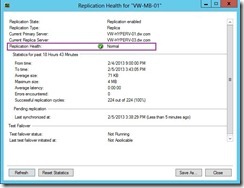
Repeat the above steps on primary server and also can view replication health.

Perform a Test Failover on Replica Server
In Hyper-V Manager, right-click VM of Replica Server next to select
Replication and
Test Failover… in menu
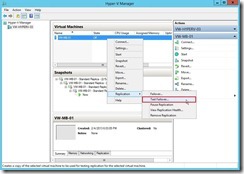
In
Test Failover dialog, choose a recovery point next to click
Test Failover button
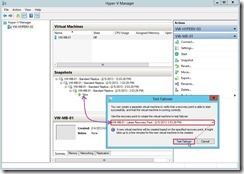
So does that will create a new VM with name ““<virtual machine name>-Test” as
VM-MB-01-test and no connect to any network segment. In the moment, we will setup another virtual switch into this network adapter to avoid Server name conflict when it powers on.
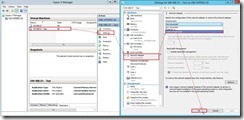
Then we need to confirm whether this VM can Start/Pause/Stop, and that any applications in the virtual machine run properly.
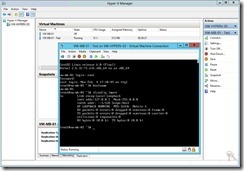
If the Test VM function is normal, please right-click VM of Replica Server again next to select
Replication and
Test Failover… in menu
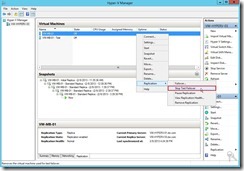
Click
Stop Test Failover button
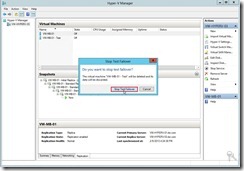
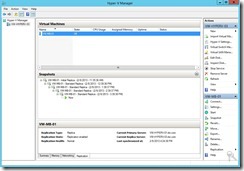
So does that the Test VM will be deleted and its data will be discarded now.
In the next article, I will introduce the planned failover & unplanned failover on Hyper-V 3.0
See you next time!
Reference :
(# 1) Configure your Replica server to receive replication traffic from specific primary server(s)
(# 2) In the moment, a dialog box appears and tell us replication enabled successfully. In this dialog, we can click
Settings… button to configure network for VM on Replica Server.
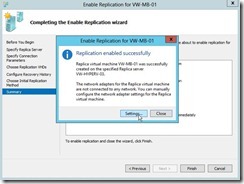
We can configure the same or different network setting so that the virtual machine will connect to our decided network after a failover to the Replica server.
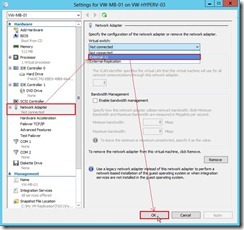
If click
Close button, we have to manually configure the network setting for Replica VM because it doesn’t connect to any network on Replica Server by default.

<<<
Hyper-V 3.0 --- Copied VM is working in another Hyper-V 3.0 Server (part 3)

 In the Hyper-V Settings dialog, click Replication Configuration Enabled as a Replica Server, choose Enable this computer as Replica Server and Use Kerberos(HTTP) check box in the Authentication and ports sections, select Allow replication from the
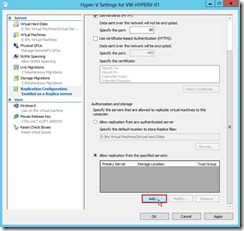 In Add Authorization Entry dialog, key in the specified word as the primary server, the default location to store replica files and the trust group next to click OK button (# 1)
 Click OK button to complete Replication Configuration setting

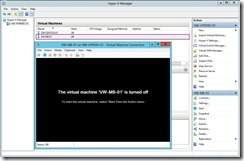 Right-click offline VM next to select Replication, Planned Failover… in menu
 In Planned Failover dialog, enable Start the Replica virtual machine after failover check box next to click Fail Over button to begin to transfer VM on the replica server.
 If the prerequisite is done, the Failover operation will be successful.
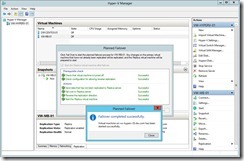 The VM replication role will be changed on the original server.
 The VM plays the part of the primary server will be started and replication direction will be from primary to replica server.
 The dialog will pop up and the some information can tell us whether replication is healthful now. (# 3)
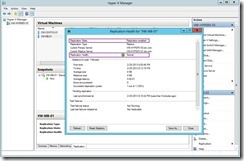 In the primary server, we also do the same step to realize replication health information.
 (# 2) If VM is still running and execute planned failover activity, we will get a error so that planned failover cannot be work.
 (# 3) About interpreting replication health attribute, we can refer to these information as the following URL


