很慶幸我不是中華國家代表隊選手!
一方面自認為體能極差、沒有一項運動專長可與世界頂級選手相抗衡;另一方面自覺我沒有勇氣與智慧,能在國家不需要我、沒有舞台時找到另一處安身立命;並在失敗與失意中,接受來自四面八方的言語嘲笑與怒罵後,仍不致於懷憂喪志、從此一蹶不振.
這幾天最火紅的新聞莫過於2013 WBC 經典賽. 在輸了日本與古巴後,網路上就充斥著各項討論.就個人認知:當中發言有中肯與激情,但我想這些都應該是出於對於中華隊的關愛,否則也不需要關注此運動. 發言者沒有誰對或誰錯,但重要的是:不要對個人有人身攻擊,且能提出有建設性的意見! 畢竟大家都是生長在這塊土地上,幾乎所有人都是希望自己國家球隊能贏的.
PS:
為何是"幾乎"而不是"全部"呢? 我想:賭客壓對手贏、喜歡為反對而反對、利益糾隔等除外吧!
但中午看到新聞報導: 這些國家代表隊的選手回國是要自行塞空位(排候補座位),真是情何以堪.畢竟這些選手是國家代表隊, 居然沒有人事先安排,還是這趟比賽只安排去日本與美國單程票行程?從小細節就可以得知我們自己禛思不夠細膩。行政作業是如此,我想培育運動人才或是戰術運用等也應該差不多,總是希望能夠速成、或靠旅外選手撐腰,但長遠之計,這是正確的作法嗎?
打勝仗就是「台灣之光」、打敗仗就是「自己看著辦」,真是很現實阿! 真佩服這些運動選手,是真的對棒球充滿著熱情,才有辦法一直堅持下去. 要是我, 我可能早早就轉行,先為自己找出路. 因為總有一天我會隨著年紀而體力下滑,或是運動生命因受傷而中斷.失去了運動舞台,到時候,誰能夠幫助我?
對日本這場比賽,是我這幾年看過最精采的好球賽(比「林來瘋」還好看)!比賽從一開始到結束,真的是高潮迭起. 過程中幾次的拉鋸,真的讓人有點喘不過氣來. 最後輸球,我想只差老天爺不眷顧吧,畢竟人家是有主場優勢啊!
但隔天對古巴的比賽,真的是慘不忍睹,早早球賽就結束,真的是讓我們看清現實與自己. 畢竟還是要回到基本面,即一切要從基本功練起才是.
希望往後的比賽,還能像這此與日本的比賽,著實讓人感動、久久不能釋懷!
加油! 熱血的棒球與參與其中的同胞(含選手、球迷等), 需要大家的堅持與熱情才能找回失去已久的棒球魂!!!
2013年3月10日 星期日


2013年3月7日 星期四
Hyper-V 3.0 --- Cancel or Reverse Replication if Planned failover fail (part 6)
In the Planned failover process, maybe it will be stopped due to some exception happen as the network connection suddenly interrupt or be unstable between Primary and Replica server. 
In the moment, we need to manually operate the rest action for roll back or go ahead to complete the pending task.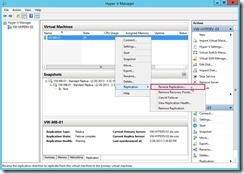
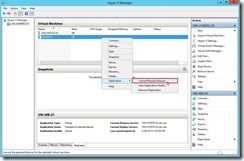
When the problem happens, please firstly view the related error message or event to realize what happen next to decide the next action. In the following scenario, although it cannot do the action “Reverse the replication direction”, all pending data has been replicated so that we can start VM on the Replica server now. Then the replication state is “Prepared for planned failover” on the primary server.
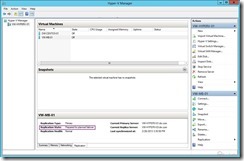 but the its status of Replica server is “Failover complete”.
 At the moment, we have to quickly make a decision as “Cancel Replication” or “Reverse Replication” if the root cause can be resolved on the condition of Service Level Agreement (SLA).
Why? Because the VM status is power off so that the related Service never is supplied now!
Cancel Planned Replication
If we don’t know what happen and how to resolve this problem, I suggest that roll back to the original environment. That is “Cancel Planned Replication”.
How to do it?
In Hyper-V Manager of the Primary server, right-click the offline VM next to select Replication and Cancel Planned Replication in menu. Click Yes button to go ahead
 So does that the replication state will be changed from “Prepared for planned failover” to “Replication Error” and the replication health will also be corrected from “Normal” to “Critical”.
In Hyper-V Manager of the Replica server, right-click the offline VM next to select Replication and Cancel Failover in menu. Click Yes button to go ahead
 So does that the replication state will be changed from “Failover complete” to “Replication enabled”.
Return to the Primary server, right-click the offline VM again to select Replication and Resume Replication in menu. So does that the replication state will be changed from “Replication Error” to “Replication enabled” and the replication health will also be corrected from “Critical” to “Warning”.
 Now we can start this Offline VM on the primary server.
Reverse Planned ReplicationIn this lab, I know why “Reverse the replication direction” fails because I disable deliberately the port 80 on the Primary Server. When I enable it on the Windows Firewall with Advanced Security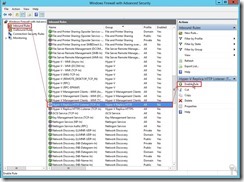
right-click this offline VM next to select Replication and Reverse Replication… in menu, it will launch the Reverse Replication Wizard on the Replica server.
In the Before You Begin dialog, click Next > button In Specify Replica Server dialog, select one server to play a replica server role next to click Next > button
 In Specify Connection parameters dialog, we just can do clicking Next > button because other information cannot be changed.
 In Configure Recovery History dialog, choose Additional recover points option next to change Number of additional recovery points to be stored, enable Replicate incremental VSS copy every hours based on our correction, and then click Next > button.
 Click Finish button to complete the Reverse Replication Wizard
If the above steps can be executed successfully, the replication information of the offline VM will be changed as Replication Type, Status, Health and current Primary or Replica Server on the original Replica Server. the same status also appears on the original Primary Server.
 Now we can start this Offline VM on the primary server.
Finally, don’t forget to check replication health status again if complete either “Cancel Replication” or “Reverse Planned Replication”.
<<< Hyper-V 3.0 --- Execute Planned Failover for Kerberos authentication on the same AD Domain (part 5)

In the moment, we need to manually operate the rest action for roll back or go ahead to complete the pending task.


When the problem happens, please firstly view the related error message or event to realize what happen next to decide the next action. In the following scenario, although it cannot do the action “Reverse the replication direction”, all pending data has been replicated so that we can start VM on the Replica server now.
 Then the replication state is “Prepared for planned failover” on the primary server.
 but the its status of Replica server is “Failover complete”.
 At the moment, we have to quickly make a decision as “Cancel Replication” or “Reverse Replication” if the root cause can be resolved on the condition of Service Level Agreement (SLA).
 Why? Because the VM status is power off so that the related Service never is supplied now!
Cancel Planned Replication
If we don’t know what happen and how to resolve this problem, I suggest that roll back to the original environment. That is “Cancel Planned Replication”.
How to do it?
In Hyper-V Manager of the Primary server, right-click the offline VM next to select Replication and Cancel Planned Replication in menu.
 Click Yes button to go ahead
 So does that the replication state will be changed from “Prepared for planned failover” to “Replication Error” and the replication health will also be corrected from “Normal” to “Critical”.
In Hyper-V Manager of the Replica server, right-click the offline VM next to select Replication and Cancel Failover in menu.
 Click Yes button to go ahead
 So does that the replication state will be changed from “Failover complete” to “Replication enabled”.
Return to the Primary server, right-click the offline VM again to select Replication and Resume Replication in menu.
 So does that the replication state will be changed from “Replication Error” to “Replication enabled” and the replication health will also be corrected from “Critical” to “Warning”.
 Now we can start this Offline VM on the primary server.
Reverse Planned ReplicationIn this lab, I know why “Reverse the replication direction” fails because I disable deliberately the port 80 on the Primary Server. When I enable it on the Windows Firewall with Advanced Security

right-click this offline VM next to select Replication and Reverse Replication… in menu,
 it will launch the Reverse Replication Wizard on the Replica server.
In the Before You Begin dialog, click Next > button
 In Specify Replica Server dialog, select one server to play a replica server role next to click Next > button
 In Specify Connection parameters dialog, we just can do clicking Next > button because other information cannot be changed.
 In Configure Recovery History dialog, choose Additional recover points option next to change Number of additional recovery points to be stored, enable Replicate incremental VSS copy every hours based on our correction, and then click Next > button.
 Click Finish button to complete the Reverse Replication Wizard
If the above steps can be executed successfully, the replication information of the offline VM will be changed as Replication Type, Status, Health and current Primary or Replica Server on the original Replica Server.
 the same status also appears on the original Primary Server.
 Now we can start this Offline VM on the primary server.
Finally, don’t forget to check replication health status again if complete either “Cancel Replication” or “Reverse Planned Replication”.
<<< Hyper-V 3.0 --- Execute Planned Failover for Kerberos authentication on the same AD Domain (part 5)
2013年2月28日 星期四
Hyper-V 3.0 --- Execute Planned Failover for Kerberos authentication on the same AD Domain (part 5)
After deploying Hyper-V Replica, maybe one day need to take Host/VM offline on the Primary Server due to the Host/VM need to update Windows security or replace bad equipment. When this status happens, we need to failover VM from the Primary to Replica role and change replication direction for configuring “reverse replication”. So does that we have to do a planned failover.
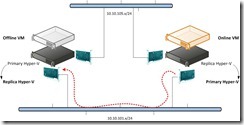
How to do it?
Configure primary server to receive replicationIn Hyper-V Manger of the primary server, click this Host next to click Hyper-V Settings… in the Actions pane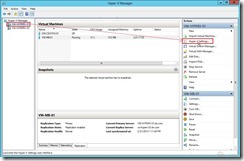 In the Hyper-V Settings dialog, click Replication Configuration Enabled as a Replica Server, choose Enable this computer as Replica Server and Use Kerberos(HTTP) check box in the Authentication and ports sections, select Allow replication from the
specified server option in the Authorization and Storage sections.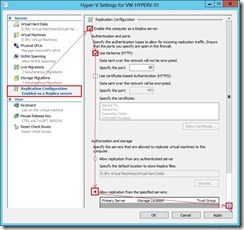
Click Add… button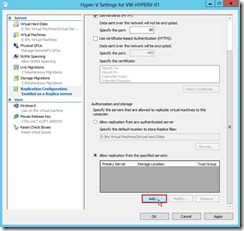 In Add Authorization Entry dialog, key in the specified word as the primary server, the default location to store replica files and the trust group next to click OK button (# 1)
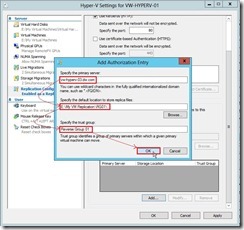 Click OK button to complete Replication Configuration setting
Configure the firewall rule on the primary serverIn Windows Firewall with Advanced Security dialog, click Inbound Rules and select Hyper-V Replica HTTP Listener (TCP-In) next to click Enable Rule then in Actions panel.
Do a Planned Failover
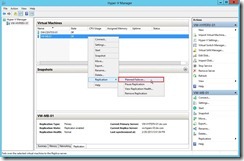
In Hyper-V Manager on the primary server, turn off VM that we want to fail over. (# 2)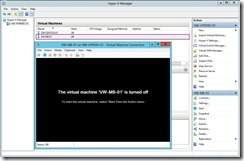 Right-click offline VM next to select Replication, Planned Failover… in menu
 In Planned Failover dialog, enable Start the Replica virtual machine after failover check box next to click Fail Over button to begin to transfer VM on the replica server.
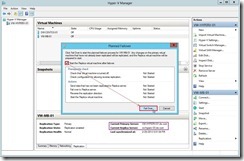 If the prerequisite is done, the Failover operation will be successful.
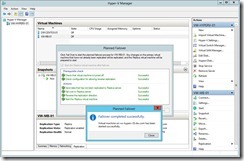 The VM replication role will be changed on the original server.
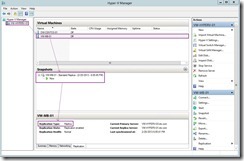 The VM plays the part of the primary server will be started and replication direction will be from primary to replica server.
Verify the replication healthRight-click VM on the replica server and click replication, View Replication Health… link in menu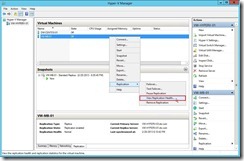 The dialog will pop up and the some information can tell us whether replication is healthful now. (# 3)
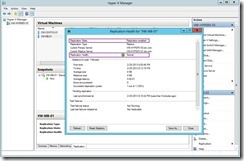 In the primary server, we also do the same step to realize replication health information.
Reference :
(# 1) In reverse replication setting, the replica files will locate on the original VM path. Its location doesn’t base on our assignment.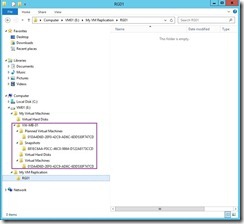 (# 2) If VM is still running and execute planned failover activity, we will get a error so that planned failover cannot be work.
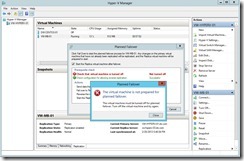 (# 3) About interpreting replication health attribute, we can refer to these information as the following URL
Interpreting Replication Health – Part 1
Interpreting Replication Health - Part 2
<<< Hyper-V 3.0 --- One-Way Replication between Non-Cluster Hosts on the same AD domain (part 4)

How to do it?
Configure primary server to receive replicationIn Hyper-V Manger of the primary server, click this Host next to click Hyper-V Settings… in the Actions pane
 In the Hyper-V Settings dialog, click Replication Configuration Enabled as a Replica Server, choose Enable this computer as Replica Server and Use Kerberos(HTTP) check box in the Authentication and ports sections, select Allow replication from the
 specified server option in the Authorization and Storage sections.

Click Add… button
In Add Authorization Entry dialog, key in the specified word as the primary server, the default location to store replica files and the trust group next to click OK button (# 1) Click OK button to complete Replication Configuration setting
Configure the firewall rule on the primary serverIn Windows Firewall with Advanced Security dialog, click Inbound Rules and select Hyper-V Replica HTTP Listener (TCP-In) next to click Enable Rule then in Actions panel.

Do a Planned Failover
In Hyper-V Manager on the primary server, turn off VM that we want to fail over. (# 2)
Right-click offline VM next to select Replication, Planned Failover… in menu In Planned Failover dialog, enable Start the Replica virtual machine after failover check box next to click Fail Over button to begin to transfer VM on the replica server.
 If the prerequisite is done, the Failover operation will be successful.The VM replication role will be changed on the original server.
 The VM plays the part of the primary server will be started and replication direction will be from primary to replica server.
Verify the replication healthRight-click VM on the replica server and click replication, View Replication Health… link in menu
 The dialog will pop up and the some information can tell us whether replication is healthful now. (# 3)In the primary server, we also do the same step to realize replication health information.
Reference :
(# 1) In reverse replication setting, the replica files will locate on the original VM path. Its location doesn’t base on our assignment.
 (# 2) If VM is still running and execute planned failover activity, we will get a error so that planned failover cannot be work.
 (# 3) About interpreting replication health attribute, we can refer to these information as the following URL
Interpreting Replication Health – Part 1
Interpreting Replication Health - Part 2
<<< Hyper-V 3.0 --- One-Way Replication between Non-Cluster Hosts on the same AD domain (part 4)
2013年2月8日 星期五
Hyper-V 3.0 --- One-Way Replication between Non-Cluster Hosts on the same AD domain (part 4)
In Hyper-V 3.0, there is new exciting function as “Replica” that belong to be an asynchronous replication from one Hyper-V’s VM to another Hyper-V Server.
Its synchronization exists four types:
1. non-cluster to non-cluster
2. non-cluster to cluster
3. cluster to non-cluster
4. cluster to cluster
In the following lab, I will introduce how to do it on non-cluster environment.
Configure the firewall on Replica Server
To configure the firewall rules for Kerberos authentication, click Advanced settings link to open Windows Firewall with Advance Security Management in Control Panel/System and Security/Windows Firewall.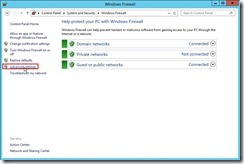 In Windows Firewall with Advanced Security Management, click Inbound Rules next to select Hyper-V Replica HTTP Listener (TCP-In) and click Enable Rule
Configure the Replica server to receive replication
In Hyper-V Manager, click the Replica Server next to click Hyper-V Setting… link in the Actions panel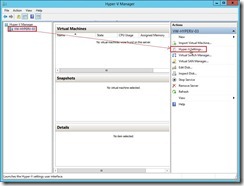 In the Hyper-V Settings dialog, click Replication Configuration Enabled as a Replica server in Server panel, select Enable this computer as a Replica server and User Kerberos (HTTP) check box in the Authentication and ports section
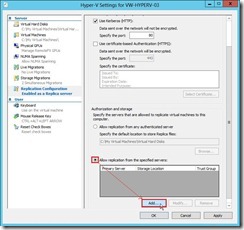
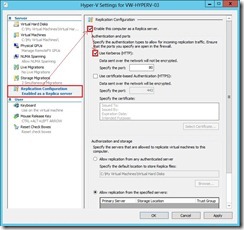 In the Authorization and storage section, select Allow replication from the specified servers radius button next to click Add… button
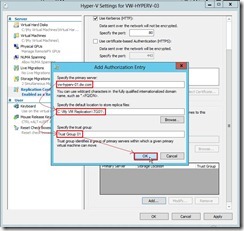
 In Add Authorization Entry dialog, write down the individual primary server as vw-hyperv-01.dw.com by <FQDN> or the particular domain as *.dw.com by *.<Domain Name> in Specify the primary server field, designate the special location for storing replica files, and assign a name as Trust Group 01 with the trust group tag.
 Click OK button if we are finished
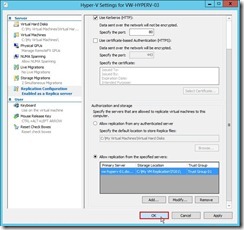 Click OK button if this reminding message “Inbound traffic needs to be allowed in the Firewall” has already been done.
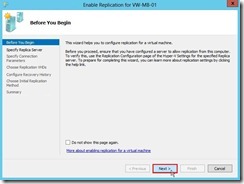
Enable replication for VM on Primary serverIn Hyper-V Manager, select a VM that want to be replicated next to click Enable Replication… link to launch the Enable Replication wizard.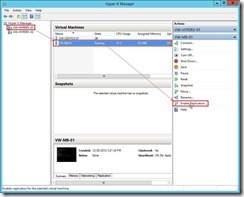 In Before You Begin page, click Next > button
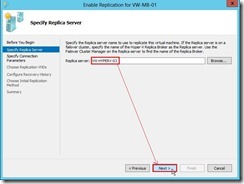
 In Specify Replica Server page, enter either NETBIOS or FQDN on Replica server field next to click Next > button
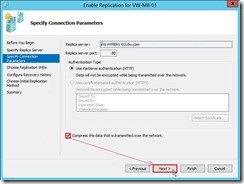
 In Specify Connection Parameters page, the port number and authentication type of the Replica server will automatically be populated if Remote WMI is enabled. So that keep the original setting about Compress the data that is transmitted over the network check box and then click Next > button.
 In Choose Replication VHDs page, clear the check box of some VHDs that we don’t want to replicate next to click Next > button
 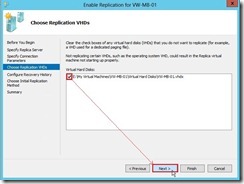 In Configure Recovery History page, select Additional recovery points option, assign a number of additional recovery points to be stored, enable and change copy frequency for Replication incremental VSS next to click Next > button
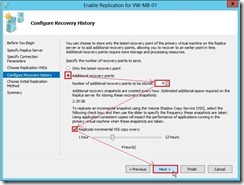 In Choose Initial Replication Method page, select the initial replication method and schedule initial replication based on the decision next to click Next > button
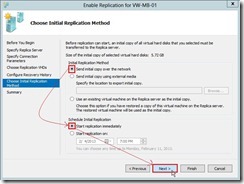 Click Finish button to complete the enable replication wizard (# 2)
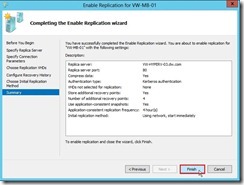 Due to we choose the initial copy over the network, the transmission traffic will begin to be high in the send of Primary Server or the receive of Replica Server.
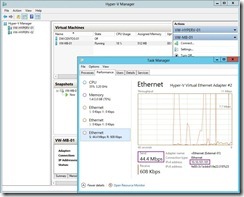

Monitor replication health
In Hyper-V Manager of Replica Server, right-click the replicating VM next to select Replication and View Replication Health… in menu to launch the health report.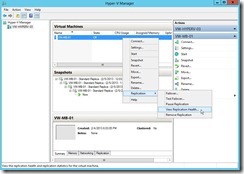 In Replication Health dialog, it will show the current replication status and some statistics.
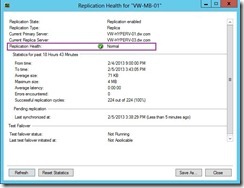 Repeat the above steps on primary server and also can view replication health.
Perform a Test Failover on Replica Server
In Hyper-V Manager, right-click VM of Replica Server next to select Replication and Test Failover… in menu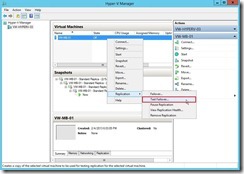 In Test Failover dialog, choose a recovery point next to click Test Failover button
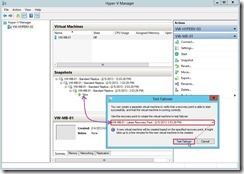 So does that will create a new VM with name ““<virtual machine name>-Test” as VM-MB-01-test and no connect to any network segment. In the moment, we will setup another virtual switch into this network adapter to avoid Server name conflict when it powers on.
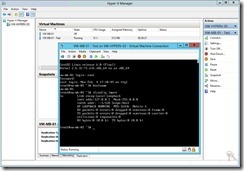
 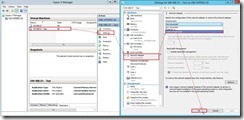 Then we need to confirm whether this VM can Start/Pause/Stop, and that any applications in the virtual machine run properly.
 If the Test VM function is normal, please right-click VM of Replica Server again next to select Replication and Test Failover… in menu
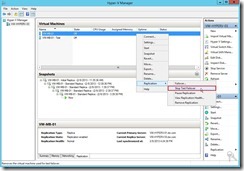 Click Stop Test Failover button
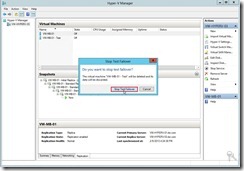 So does that the Test VM will be deleted and its data will be discarded now.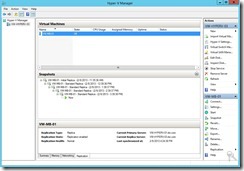
In the next article, I will introduce the planned failover & unplanned failover on Hyper-V 3.0
See you next time!
Reference :
(# 1) Configure your Replica server to receive replication traffic from specific primary server(s)
(# 2) In the moment, a dialog box appears and tell us replication enabled successfully. In this dialog, we can click Settings… button to configure network for VM on Replica Server.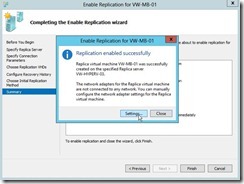 We can configure the same or different network setting so that the virtual machine will connect to our decided network after a failover to the Replica server.
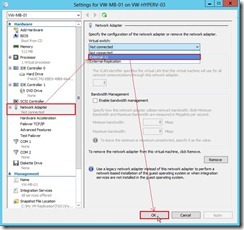 If click Close button, we have to manually configure the network setting for Replica VM because it doesn’t connect to any network on Replica Server by default.

<<< Hyper-V 3.0 --- Copied VM is working in another Hyper-V 3.0 Server (part 3)
Its synchronization exists four types:
1. non-cluster to non-cluster
2. non-cluster to cluster
3. cluster to non-cluster
4. cluster to cluster
In the following lab, I will introduce how to do it on non-cluster environment.

Configure the firewall on Replica Server
To configure the firewall rules for Kerberos authentication, click Advanced settings link to open Windows Firewall with Advance Security Management in Control Panel/System and Security/Windows Firewall.
 In Windows Firewall with Advanced Security Management, click Inbound Rules next to select Hyper-V Replica HTTP Listener (TCP-In) and click Enable Rule
Configure the Replica server to receive replication
In Hyper-V Manager, click the Replica Server next to click Hyper-V Setting… link in the Actions panel
 In the Hyper-V Settings dialog, click Replication Configuration Enabled as a Replica server in Server panel, select Enable this computer as a Replica server and User Kerberos (HTTP) check box in the Authentication and ports section
 In the Authorization and storage section, select Allow replication from the specified servers radius button next to click Add… button
 In Add Authorization Entry dialog, write down the individual primary server as vw-hyperv-01.dw.com by <FQDN> or the particular domain as *.dw.com by *.<Domain Name> in Specify the primary server field, designate the special location for storing replica files, and assign a name as Trust Group 01 with the trust group tag.
 Click OK button if we are finishedClick OK button if this reminding message “Inbound traffic needs to be allowed in the Firewall” has already been done.
Enable replication for VM on Primary serverIn Hyper-V Manager, select a VM that want to be replicated next to click Enable Replication… link to launch the Enable Replication wizard.
 In Before You Begin page, click Next > button
 In Specify Replica Server page, enter either NETBIOS or FQDN on Replica server field next to click Next > button
 In Specify Connection Parameters page, the port number and authentication type of the Replica server will automatically be populated if Remote WMI is enabled. So that keep the original setting about Compress the data that is transmitted over the network check box and then click Next > button.
 In Choose Replication VHDs page, clear the check box of some VHDs that we don’t want to replicate next to click Next > button
  In Configure Recovery History page, select Additional recovery points option, assign a number of additional recovery points to be stored, enable and change copy frequency for Replication incremental VSS next to click Next > button
 In Choose Initial Replication Method page, select the initial replication method and schedule initial replication based on the decision next to click Next > button
 Click Finish button to complete the enable replication wizard (# 2)
 Due to we choose the initial copy over the network, the transmission traffic will begin to be high in the send of Primary Server or the receive of Replica Server.

Monitor replication health
In Hyper-V Manager of Replica Server, right-click the replicating VM next to select Replication and View Replication Health… in menu to launch the health report.
 In Replication Health dialog, it will show the current replication status and some statistics.
 Repeat the above steps on primary server and also can view replication health.
Perform a Test Failover on Replica Server
In Hyper-V Manager, right-click VM of Replica Server next to select Replication and Test Failover… in menu
 In Test Failover dialog, choose a recovery point next to click Test Failover button
 So does that will create a new VM with name ““<virtual machine name>-Test” as VM-MB-01-test and no connect to any network segment. In the moment, we will setup another virtual switch into this network adapter to avoid Server name conflict when it powers on. Then we need to confirm whether this VM can Start/Pause/Stop, and that any applications in the virtual machine run properly.
 If the Test VM function is normal, please right-click VM of Replica Server again next to select Replication and Test Failover… in menu
 Click Stop Test Failover button
 So does that the Test VM will be deleted and its data will be discarded now.
In the next article, I will introduce the planned failover & unplanned failover on Hyper-V 3.0
See you next time!
Reference :
(# 1) Configure your Replica server to receive replication traffic from specific primary server(s)
(# 2) In the moment, a dialog box appears and tell us replication enabled successfully. In this dialog, we can click Settings… button to configure network for VM on Replica Server.
 We can configure the same or different network setting so that the virtual machine will connect to our decided network after a failover to the Replica server.
 If click Close button, we have to manually configure the network setting for Replica VM because it doesn’t connect to any network on Replica Server by default.
<<< Hyper-V 3.0 --- Copied VM is working in another Hyper-V 3.0 Server (part 3)
訂閱:
文章 (Atom)