網頁

2011年10月1日 星期六

Prerequisite for installing the first Exchange 2010

I will prepare to install the Exchange 2010 in my lab. For doing it,I need to do some prerequisite before installing Exchange 2010.

  • prepare the AD schema
  • prepare AD
  • prepare Domain

In my lab environment, there is two Domain Controller(DC) on single domain and single forest. One DC operation system is Windows 2003, the other is Windows 208 R2.

According to the Microsoft Official document, I just run the command "Setup /PrepareSchema" on the Schema Master role of DC and it will finish the prepare AD schema if no any error.

After doing it, I want to start rapidly DC replication process so that I run the replication command "Repadmin /syncall /A /e /P" on DC. So do that I don't need to wait for DC default replication duration.

Of course, you need to realize whether replication mechanism is normal after do it. So you need to run the command "Repadmin /showrepl * " on every DC.

Finally, you can realize the replication status by running the command "Repadmin /replsummary".
Congratulation, you can execute the next step if no any error--- Prepare AD.

When I run the command "Setup /PrepareAD", the Exchange setup encounters an error and it tell me the Exchange organization name is required.

Due to I never install any Exchange Server in lab,that's said there is no exist any Exchange Organization Name. This is why I need to specify an organization name parameter when run the command.

I follow the screen suggestion to add a parameter as "Setup /PrepareAD /OrganizationName:EXLABORG". The result is normal, no any error show up.

I still execute the related replication command as the above steps to confirm the replication is normal now. Finally, I run the command "Setup /PrepareDomain" to finish the prerequisite steps for installing the Exchange 2010.

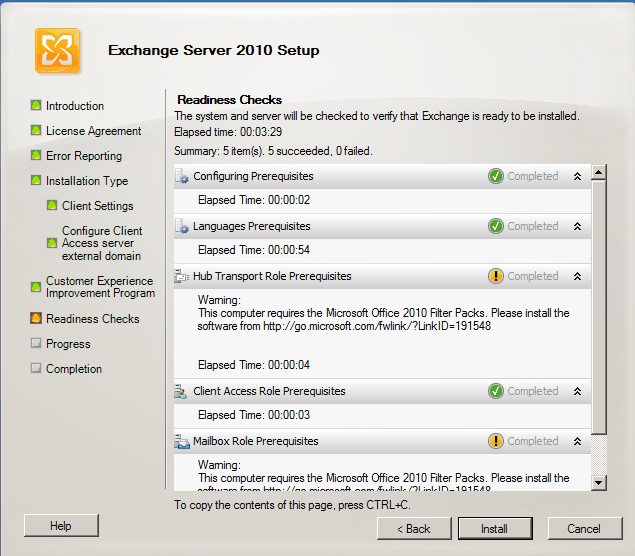
When I begin to install Exchange 2010 with SP1 by wizard, the check list show a error about lack of Microsoft Office 2010 filter pack.

I think the Window 2008 R2 with SP and hotfix up to date doesn't exist the built-in this package. According to the related article, the installation of Exchange 2010 with SP1 need to pre-install Microsoft Office Filter Pack 2.0, not 1.0 version.
After offsetting this, it success to install Exchange 2010 now.

2011年9月22日 星期四

Register Exchange 2010 License

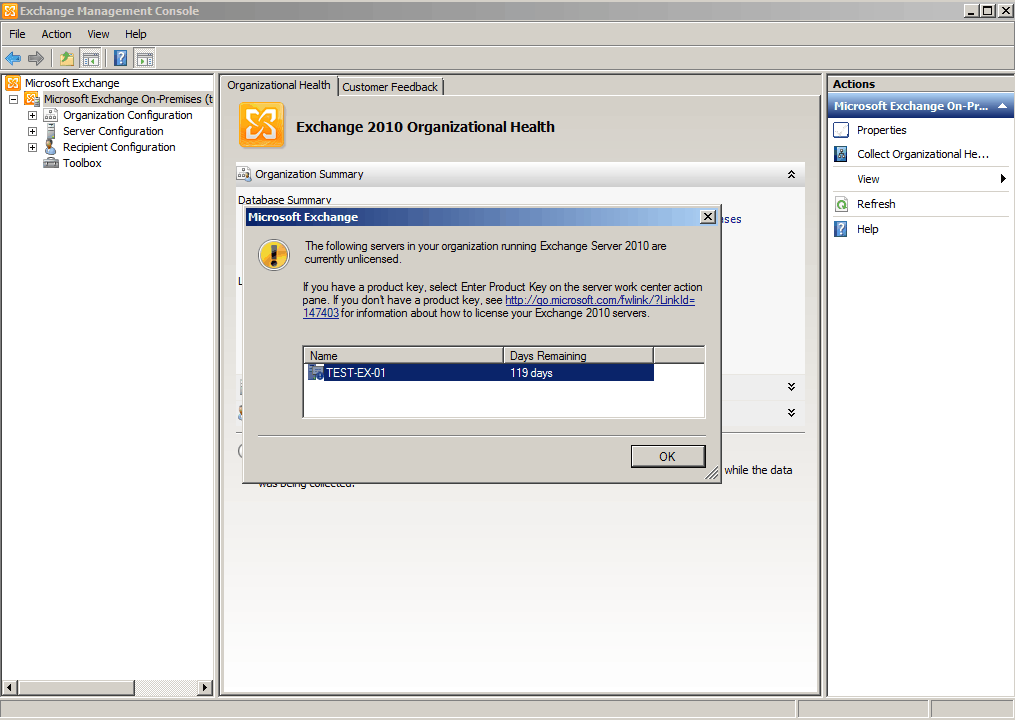
Recently, I need to build a exchange 2010 system for realizing CAS+HUB+Mailbox role. After installing it by Wizard and open EMC, the message show up the 119 days of Days Remaining.

I check the current edition that is Standard Trial Edition and is Unlicensed now.

Right-Click this Server name to select "Enter Product Key..." on the menu

Follow the wizard to key in Product Key

Finally, you will see the summary message with power shell command for registering Licence Key. If the information is right, please click "Finish" button now.

Reconfirm Server Edition and License Number, it did change to legal edition now.

It is very simply, isn't it?

2011年9月11日 星期日

Openfiler Network fail

I am not sure why openfiler lose network function today! It is normal yesterday and I don't change any setting in this environment. As it tell me to login OS to restart networking, I follow its suggestion to log on console by root account.

When I restart network daemon, the screen still show error and the message is "e1000 device eth0 does not seem to be present, delaying initialization".

I check service status by "service --status-all" and find out "eth0" not up.


In this status, I wonder whether the kernel is not aware of the network card or the network module lose suddenly. So I list the hardware device by command and see the model or configuration of network card.


Finally, I find out the interesting message "udev: renamed network interface eth0 to eth1".

So I try to start network deamon on eth1 and it did exist network function and deamon can be started.

So I decide to correct some parameter on /etc/sysconfig/network-scripts/ifcfg-eth0 as following state.
DEVICE=eth1 and HWADDR="new MAC address"

It also is successful after restarting network deamon.

Now the openfiler console never show any error message about network function.

Good lucky for me to resolve this problem!

2011年9月10日 星期六

Bulk rename utility

If you want to rename a extension of file, it is very simple to do it by right-click this file next to click "rename" in the menu. But if the file is very much, we need to repeat the same activity. I think it is not smart and spend more time for me. Whether has a simple method to do it? That is "Bulk Rename Utility".

To execute this utility and select the file you want to rename extension.

To change extension option from "Same" to "Remove".

You will see the final new name as green font in the screen.

If it is true what you want to do it, click "Rename" button to change it.

So do that you will see the files' extension is renamed right now. Save the time very much!

Although it is a little utility, it will be very convenient for us to do "Bulk Rename file" .

2011年9月4日 星期日

Enable Firewall Service between windows 2003 AD and 2008 R2 AD

In general, we often install AD without firewall function on our corporation or lab environment. So do that it will be easy to build AD. Although we know it is not safety or strict on system setting, we always disable window firewall service for avoiding the redundant effort in any troubleshooting. As you know,it will have a little chance for Cracker if there is existing any open port on O.S. If there is extra security hole on O.S., maybe it will be good channel pass through this and let system or application function crash suddenly.

As the previous article "Samba 3 join Windows AD", I also do the same behavior for avoiding firewall limitation. So do that I will focus on the relationship between Samba and AD and it will be easy to troubleshoot for us. But I know, it is not exact action because I assume there is no existing any security on system.

Time is up to enable firewall function on Windows platform!
How to do it?
That is the AD function still be normal after enable firewall service between Windows 2003 AD and Windows 2008 R2 AD.

At first, the AD replication need to be concerned. The second is FRS function. The last is RPC for net logon or join Domain. Please follow the next process to realize how to change setting on AD!

Ø  Configure all Domain Controllers TCP port number for AD Replication to use a specific port
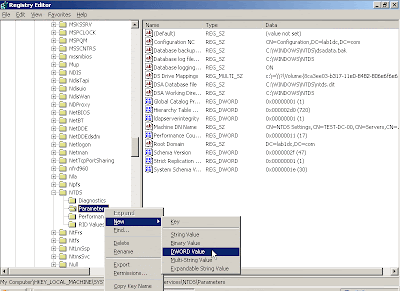
1.      Add the following registry value on HKEY_LOCAL_MACHINE\SYSTEM\CurrentControlSet\Services\NTDS\Parameters
§  If Windows 2003 Server
§  If Windows 2008 R2 Server
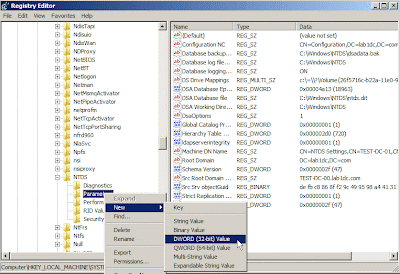
§  Set “TCP/IP Port” on Value name and “53211” (Decimal) on Value data
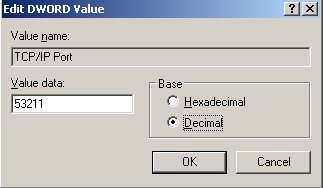
2.      Add the following setting on firewall
§  If Windows 2003 Server

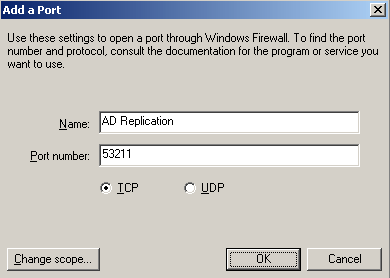
Write down a firewall rule Name and “53211” Port number, next to click “OK” button
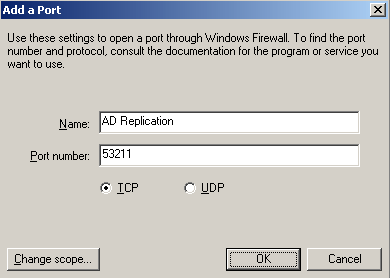
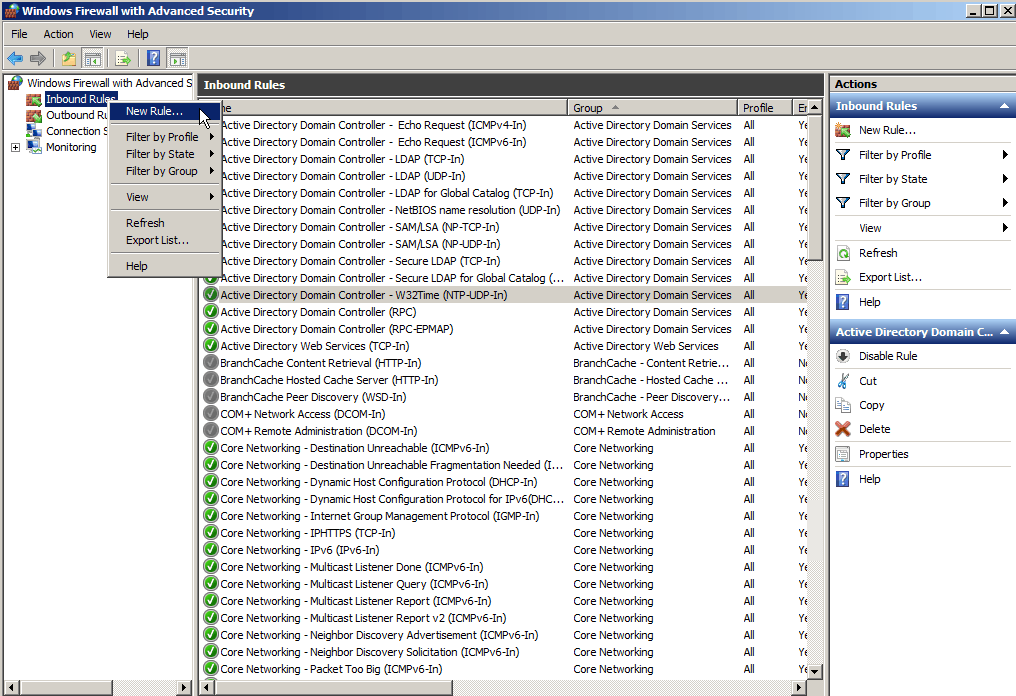
§  If Windows 2008 R2 Server
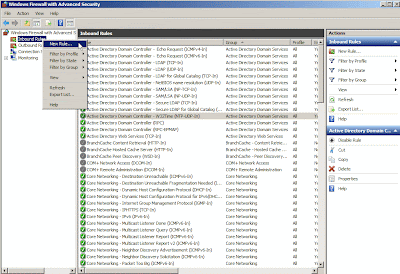
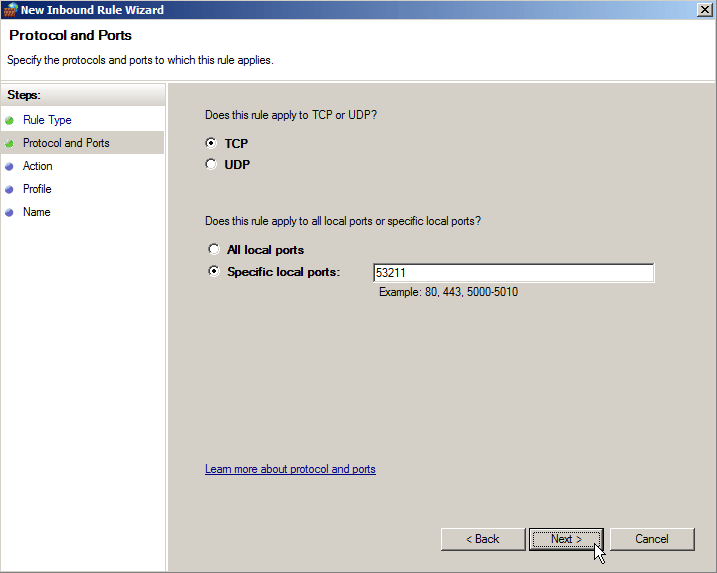
Select “Port” option next to click “Next > ”  button
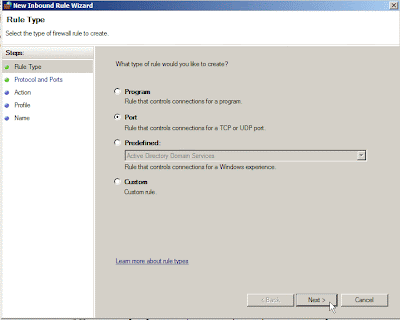
Set “53211” value on Special local ports field next to click “Next >”  button
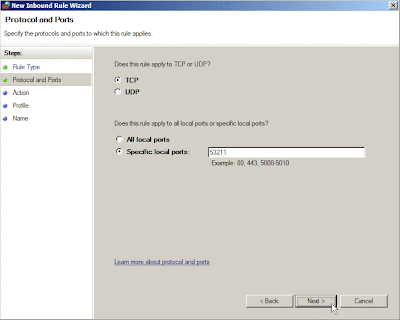
Click “Next > “ button
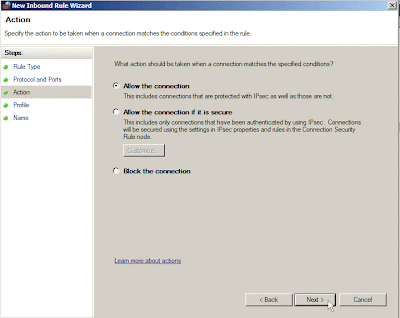
Click “Next > ” button
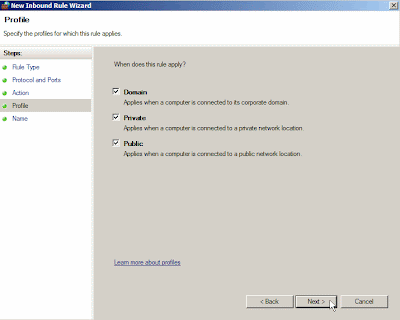
Write down a firewall rule Name and click “Finish” button


Ø  Configure all Domain Controllers TCP port number for FRS to use a specific port
1.       Add the following registry value on HKEY_LOCAL_MACHINE\SYSTEM\CurrentControlSet\Services\NtFrs\Parameters
§  Windows 2003 Server

§  Windows 2008 R2 Server

§  Set “RPC TCP/IP Port Assignment” on Value name and “53212” (Decimal) on Value data


2.       Add the following setting on firewall
§  If Windows 2003 Server

Write down a firewall rule Name “File Replication Service” and “53212” Port number, next to click “OK” button


§  If Windows 2008 R2 Server

Select “Port” option next to click “Next > ”  button

Set “53212” value on Special local ports field next to click “Next >”  button

Click “Next > “ button

Click “Next > ” button

Write down a firewall rule Name and click “Finish” button


Ø  Configure all Domain Controllers TCP port number for RPC to use a specific port
1.      Add the following registry Key “Internet” under
HKEY_LOCAL_MACHINE\SYSTEM\CurrentControlSet\Services\NTDS\Parameters
§  If Windows 2003 Server

§  If Windows 2008 R2 Server

2.      Add the following registry value on
HKEY_LOCAL_MACHINE\Software\Microsoft\Rpc\Internet
§  Under the Internet key, add the values "Ports" (MULTI_SZ)

§  Set “Ports” on Value name and “5000-5100” on Value data

§  Under the Internet key, add the values "PortsInternetAvailable" (REG_SZ) and "UseInternetPorts" (REG_SZ)

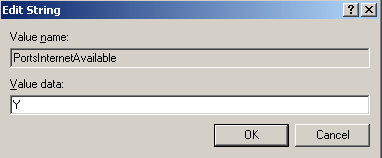
§  Set “PortsInternetAvailable” on Value name and “Y” on Value data

§  Set “UseInternetPorts” on Value name and “Y” on Value data

3.      Add the following setting on firewall
§  If Windows 2003 Server

Create multiple ports from the command prompt by the following scripts

: Delete multiple ports by the following scripts

So do that you will see the ports is created for RPC range
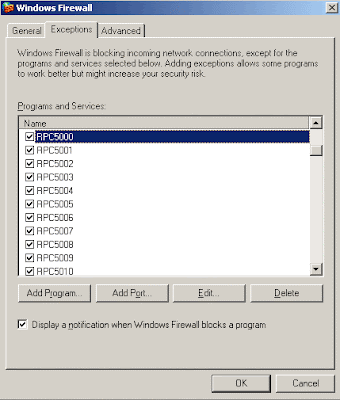
§  If Windows 2008 R2 Server
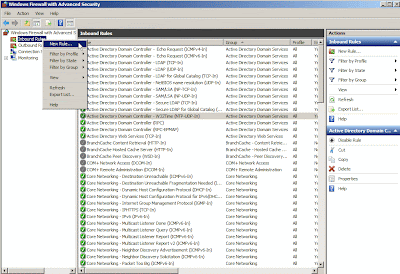
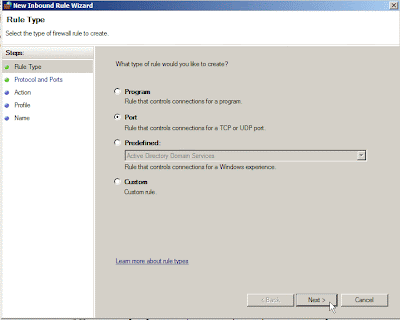
Select “Port” option next to click “Next > ”  button
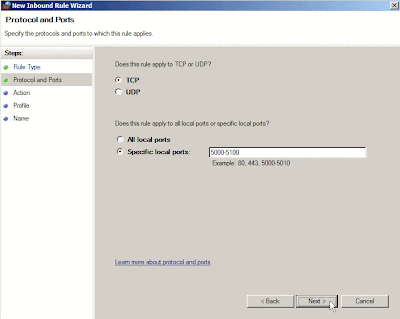
Set “5000-5100” value on Special local ports field next to click “Next >”  button
Click “Next > “ button
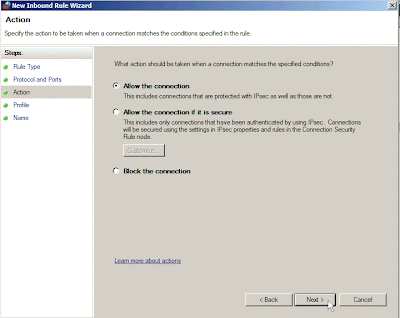
Click “Next > ” button
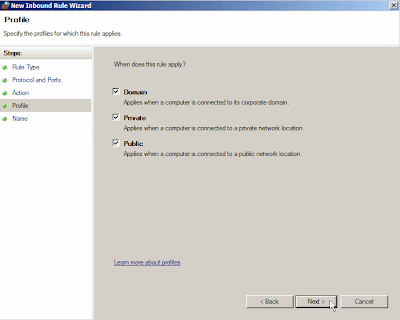
Write down a firewall rule Name and click “Finish” button

When the previous setting has already been finished and firewall service is enabled, the system need to be rebooted next to verify whether AD Replication, FRS and RPC for net logon also are normal. So you can run Dcdiag.exe on prompt command to confirm the function is not any problem.

If there is any error message on report, please double-check whether the setting is wrong or forget to change any parameter. Just only one solution ---- try and error by yourself!
Ø  Verify the state of  all Domain Controllers by Domain Controller Diagnostic tool (Dcdiag)

Open a text file to confirm whether exist “passed test” words if it success

Since 2010 Design by Davidwa
©Copyright Davidwa Inc. All rights reserved.